This topic includes:
▪Restoring The Default Settings
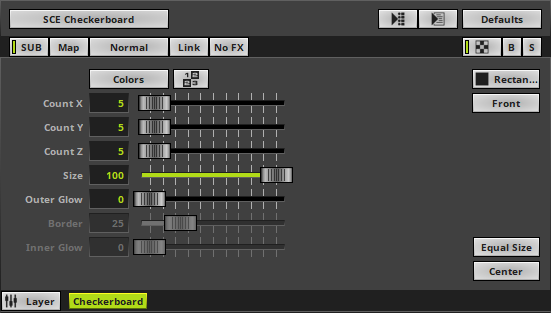
SCE Checkerboard draws clear segments or segmented patterns. Thanks to the Color Table, each segment can have their own color/brightness values.
 |
|
 Default Settings |
 Customized Example |
▪Various buttons and controls have universal functions. They are available for each MADRIX Effect / Layer.
Learn more »Effect Areas [Deck A / Deck B]
Learn more »Layers
This MADRIX Effect uses the following, individual controls:
▪Colors - Opens the Color Gradient to specify the colors. The default color is Black, White.
Learn more »[Global] Colors And Intensity
▪Count X - Defines the number of objects horizontally. The default value is 5. Valid values range from 1 to 100.
▪Count Y - Defines the number of objects vertically. The default value is 5. Valid values range from 1 to 100.
▪Count Z - Defines the number of objects in the depth. The default value is 5. Valid values range from 1 to 100.
▪Size - Defines the size of objects [in % of the segment size]. The default value is 100. Valid values range from 0.01 to 100.
▪Outer Glow - Defines the outer shimmer of objects. The default value is 0. Valid values range from 0 to 100.
▪Border - Is only available for 2D outlined shapes or 3D unfilled shapes. Defines how thick the outer line [border] of objects is. The default value is 25. Valid values range from 0.01 to 100.
▪Inner Glow - Is only available for 2D outlined shapes or 3D unfilled shapes. Defines the inner gleam of objects which are not filled. The default value is 0. Valid values range from 0 to 100.
|
Pattern - Defines how colors from the Color Table are assigned to each segment. Is only noticeable if different colors are used. Diagonal - Colors are assigned diagonally across the entire effect. [Note: This Pattern does not allow you to control the color of each segment separately.] Horizontal - Colors are assigned to segments starting from left to right, for each row. Alternating - Colors are assigned to segments alternately, starting from left to right for the first row, but then from right to left for the next row. |
|
Shape - Allows you to choose a specific shape for objects. A certain Size is required before a shape becomes visible. The default setting is Rectangle Filled. |
|
Shape Alignment - Allows you to choose to which side objects are aligned to. This is mainly relevant for 3D. The default setting is Front. |
|
Equal Size - Ensures that each object has the same size. [As a result, this could mean that shapes are cut off at the edge of the virtual matrix or have up to half a segment added to them.] |
|
Center - Repositions the effect by half a segment in order to have the midpoint of a segment in the center of the virtual matrix or the point between two segments; depending if the set Count is even or uneven. |


Restoring The Default Settings
|
Restore Default Layer Settings - Restores the default settings of the Layer. |

| MADRIX 5.8. |
| [Ctrl & +/-] = Zoom In/Out | [Ctrl & 0] = 100% |
|
Previous Next
|
|
Enable Automatic Translation | Activer La Traduction Automatique | 启用自动翻译 |