This topic includes:
▪Time
▪Go to the menu Preferences > Options... > Time / Location
[Keyboard shortcut: Ctrl+Alt+O > Time / Location]
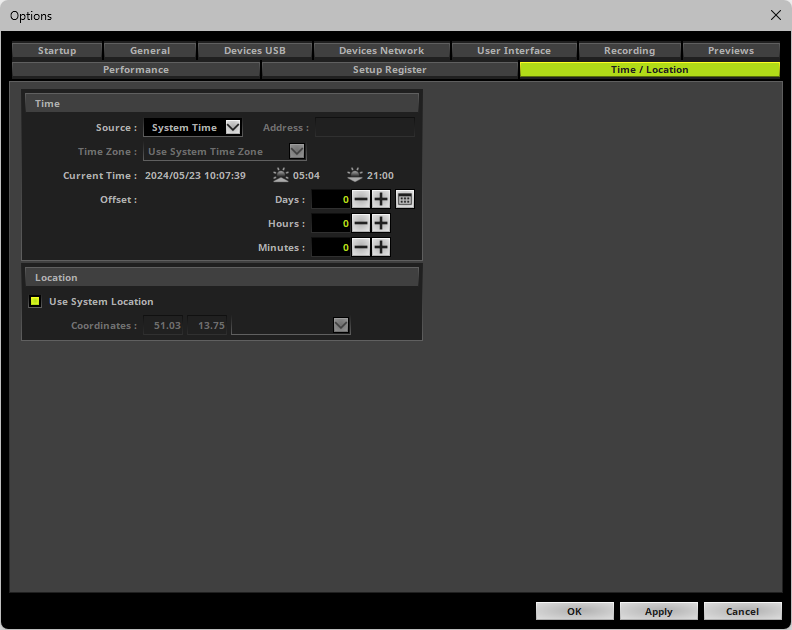
▪Set up the options as explained below.
▪Source - Defines the provider of the time and date that is being used throughout the software.
- System Time - Uses the time and date set in and provided by the operating system.
- NTP Server - Uses the time provided by an NTP server.
Address - Enter the IP address of the NTP server [using 4 octets].
Make sure the connection to your NTP server is working. NTP server can be in your local network [recommended],
or it could be external, in which case the network gateway needs to work correctly [which might require a DNS].
▪Time Zone - Allows you to choose the time zone that should be used.
- Use System Time Zone - Uses the time zone set in and provided by the operating system.
▪Current Time - Shows the date and time that is being provided and used as well as calculated sunrise and sunset times, based on the Location.
▪Offset - Allows you to define an offset, which is particularly useful for testing.
Days - Defines an offset to the current time in days. Valid values range from 0 to 9999.
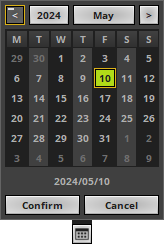
You can use the calendar widget to let the software calculate the days offset towards a certain date.
Hours - Defines an offset to the current time in hours. Valid values range from 0 to 23.
Minutes - Defines an offset to the current time in minutes. Valid values range from 0 to 59.
▪Use System Location - Uses the location set in and provided by the operating system.
- You may have to allow location access. In Windows 11, go to Settings > Privacy & security > Location to turn on location and grant this application permission to access location data.
- If you disable Use System Location, you can manually choose the location by entering latitude and longitude coordinates or by choosing a city.
▪All options of Time / Location will be saved locally on your computer. The settings described in this topic will not be saved in your MADRIX 5 Setup file.
| MADRIX 5.8. |
| [Ctrl & +/-] = Zoom In/Out | [Ctrl & 0] = 100% |
|
Previous Next
|
|
Enable Automatic Translation | Activer La Traduction Automatique | 启用自动翻译 |