This topic includes:
 - Applies a special filter to quickly change your visuals.
| ▪ | You can choose to quickly change your visuals with the help of filters. |
| ▪ | There are several categories to choose from. Each category contains several options to change the visual appearance of your effect. |
| ▪ | MADRIX offers filters in 4 distinct locations, but they can be activated at the same time if needed. |
| ▪ | Main Output Filter - Applies the filter to the Main Output. That means that the overall and final output is affected. Learn more »Crossfader And Main Output |
| ▪ | Filter Left / Filter Right - Applies the filter to an entire effect pipeline, Left or Right. That means that all Storages, Storage Places, and Layers will be affected. Learn more »Controls [Left/Right] |
| ▪ | Storage Place Filter - Applies the filter to a single Storage Place and its Layers. That means that the Storage Place and all of its included Layers will be affected. Learn more »Storages |
| ▪ | Layer Filter - Applies the filter to a single Layer. That means that only the single Layer will be affected. Learn more »Layers |
| ▪ | Right Mouse Click - Resets the filter to its default value [No FX]. |
|
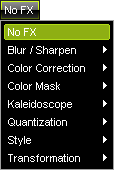
No FX - Disables all additional filters. The effect will be displayed as normal. |
|
|
|
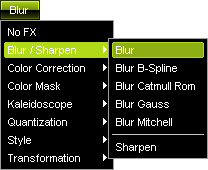
Blur / Sharpen - Includes 5 modes to blur/smudge and 1 mode to sharpen the effect. - Blur softens the visuals. - Blur Mitchell softens the visuals. |
|
|
|
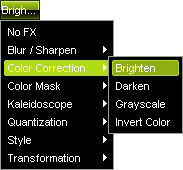
Color Correction - Includes 4 modes to change the colors of your effect. |
|
|
|
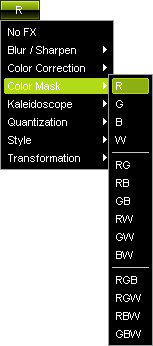
Color Mask - Includes various modes to filter colors. - R shows only red color values. - RG shows only red and green color values. - RGB shows only red, green, and blue color values. |
|
|
|
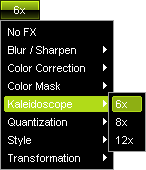
Kaleidoscope - Includes 3 modes to change the style of your effect. |
|
|
|
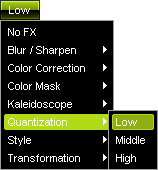
Quantization - Includes 3 modes to change the colors of your effect. |
|
|
|
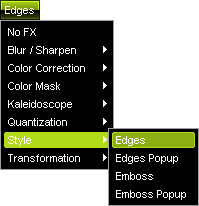
Style - Includes 4 modes to highlight the edges of effects or to add an imprinted visual style. - Edges highlights the edges of objects and colors. |
|
|
|
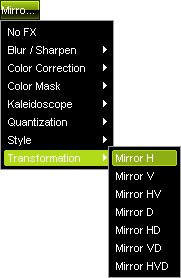
Transformation - Includes 7 modes to flip the effect quickly. - Mirror H flips the effect horizontally. - Mirror HV flips the effect horizontally and vertically. - Mirror D flips the effect regarding the depth. - Mirror HD flips the effect horizontally and regarding the depth. - Mirror VD flips the effect vertically and regarding the depth. - Mirror HVD flips the effect horizontally, vertically, and regarding the depth. |