This topic includes:
Software options include various settings regarding the MADRIX RADAR Software itself.
▪Go to the menu Preferences > Options... > General
[Keyboard shortcut: Ctrl + Alt + O > General]
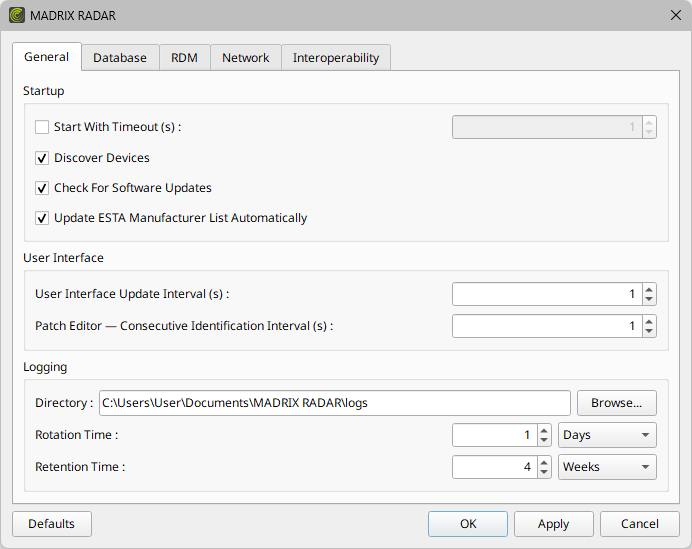
▪Set up the options as explained below.
▪Restore the default settings via Defaults.
▪Confirm any changes with OK or Apply. Discard any changes via Cancel.
Startup
▪Start With Timeout (s) - Allows you to define the time the software waits in seconds [s] and delays the startup process. MADRIX RADAR will not fully start until the time has passed. Is useful when MADRIX RADAR is automatically started together with the operating system [that is, if MADRIX RADAR is a Startup App of the Windows operating system.]
- This timeout is particularly useful when using network devices. The Windows operating system needs some time to initialize such devices first. But MADRIX RADAR might be already loaded completely and as a result may not detect the devices. This option prevents that and tries to ensure that devices are ready to be found before the software scans for them or tries to communicate with them.
[This option is set to Off by default.]
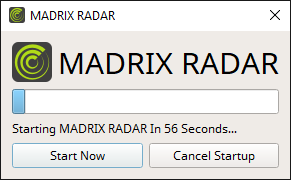
- A new loading window will appear before the software starts. It shows a countdown and 2 options:
- Start Now - Start the software immediately.
- Cancel Startup - Cancels the startup and MADRIX RADAR will not be launched.
▪Discover Devices - Scans for devices [interfaces and RDM device] in the network automatically as soon as the software has been started [ArtPoll Reply].
- It might be advisable to turn this setting off, once a project is fully configured and set up. Otherwise, the software scans for new devices every time the software is started [intentionally or unintentionally].
[This option is set to On by default.]
▪Check For Software Updates - Automatically searches for software updates. When a new update is available, a notification will be presented to you when starting the software. This requires an active internet connection.
[This option is set to On by default.]
▪Update ESTA Manufacturer List Automatically - Is only available if Check For Updates is enabled. Automatically [and silently] updates the list of ESTA manufacturer IDs. This requires an active internet connection.
- If set to Off and a new update is available, a notification will be presented to you when starting the software in order to choose downloading and updating the list.
- The list is stored under C:\Users\USER\Documents\MADRIX RADAR\cache
- You can manually check for updates using the menu Help > About > Check For Updates.
[This option is set to On by default.]
User Interface
▪User Interface Update Interval (s) - Defines the time interval at which the software is refreshed in seconds [s]. This refers to how often the graphical user interface [GUI] is being updated and can display new and up-to-date information.
- If this value is too low, this may result in too many database queries. This, in turn, can lead to a high number of hard-drive access operations [which can decrease a drive's lifespan due to its maximum read and write cycles].
- If this value is too high, all or parts of the information that is shown in the software may be temporarily outdated and not up to date anymore.
[Valid values range from 1 to 3600. This option is set to 1 s by default.]
▪Patch Editor — Consecutive Identification Interval (s) - Defines the time interval in seconds at which the software performs the Identify Devices Consecutively feature of the Patch Editor.
[Valid values range from 1 to 60. This option is set to 1 by default.]
Logging
▪Directory - Defines the location on your computer system, where log files are saved.
- Browse... - Allows you to choose a different folder or directory.
▪Rotation Time - Defines the time interval after which a new file is created. Enter any number and choose between Hours, Days, and Weeks.
[The default value for this option is 1 day.]
[The software automatically rotates files if a single logfile becomes too large, which is around 50 MB.]
▪Retention Time - Defines the time interval after which log files are deleted from the computer/system. Enter any number and choose between Hours, Days, and Weeks.
[The default value for this option is 4 weeks.]
▪All General options will be saved locally on your computer.
| MADRIX RADAR User Manual 1.5. |
| [Ctrl & +/-] = Zoom In/Out | [Ctrl & 0] = 100% |
|
Previous Next
|
|
Enable Automatic Translation | Activer La Traduction Automatique | 启用自动翻译 |